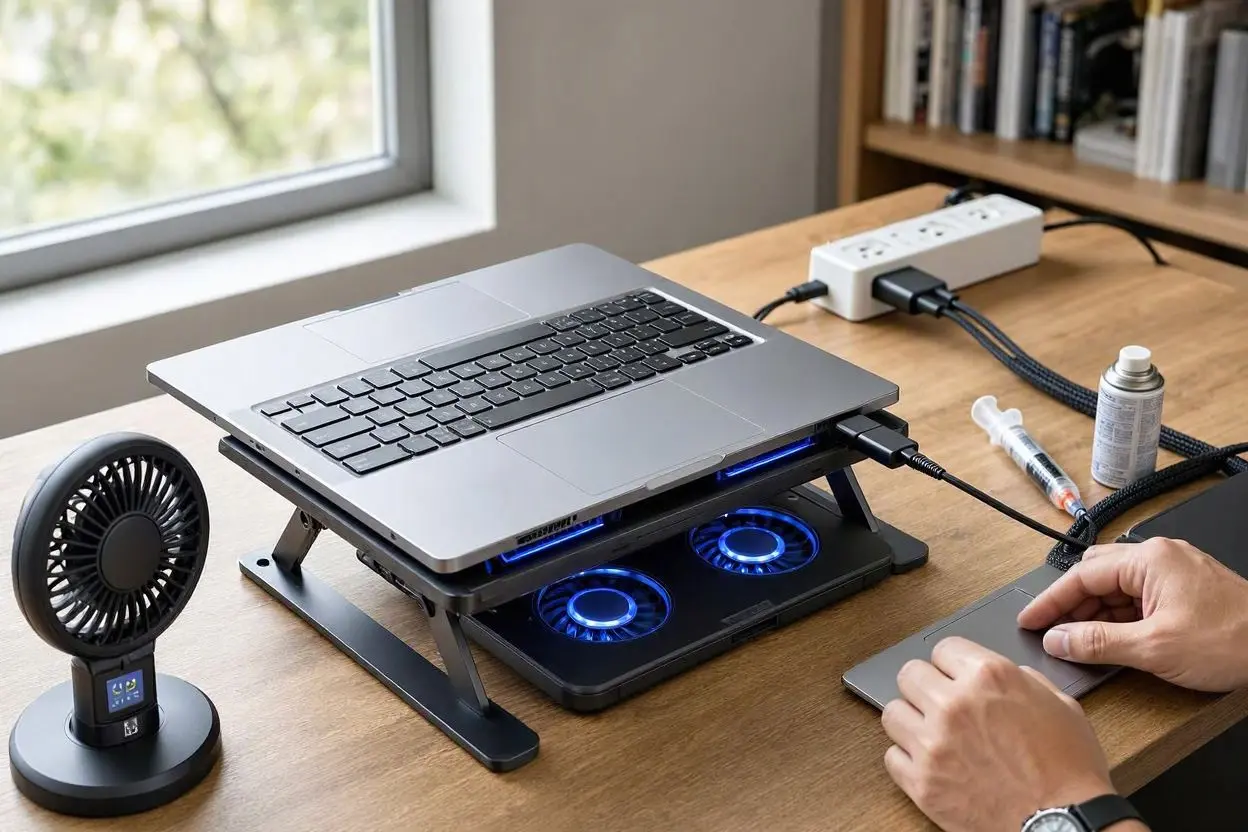
How to Stop Your Laptop From Overheating While Charging
Laptops can become noticeably warm while they are charging, especially when you are working, gaming, watching videos, or running demanding programs at the same time. A little heat is normal, but if your laptop gets extremely hot while charging, the issue should not be ignored.
Excessive heat can affect your laptop’s performance, battery life, and overall hardware over time. The good news is that you can usually reduce laptop overheating with a few simple changes to your setup and charging habits.
In this guide, you will learn how to stop your laptop from overheating while charging and what you can do to keep your device cooler.
Why Does a Laptop Get Hot While Charging?
Some heat during charging is completely normal. Your laptop battery produces heat as it stores electrical energy, while the processor and other components may also generate heat when the computer is being used.
The problem can become more noticeable when several things happen at once. For example, using demanding software while charging can increase the workload on the CPU and GPU. Blocked air vents, dust, a warm room, or a poor-quality charger can also contribute to excessive heat.
Understanding the cause makes it easier to find the right solution.
1. Keep Your Laptop on a Hard, Flat Surface
One of the easiest ways to reduce laptop heat is to place it on a hard and flat surface while charging.
Using a laptop on a bed, blanket, pillow, or sofa can block the ventilation openings underneath the device. When airflow is restricted, hot air cannot escape properly.
A desk or table is usually a much better option. If you need to use your laptop away from a desk, consider using a stable laptop stand that allows air to circulate underneath it.
2. Keep the Air Vents Clear
Laptop ventilation is essential for proper cooling. Locate the air intake and exhaust vents on your laptop and make sure they are not covered.
Dust can also collect around these openings over time. A buildup of dust may restrict airflow and make the cooling system work harder.
Clean the vents carefully using appropriate cleaning equipment. Avoid forcing dust deeper into the laptop, and if the internal components require cleaning, professional servicing may be safer.
3. Use the Original or Compatible Charger
A charger plays an important role in safe laptop charging. Whenever possible, use the charger supplied by the laptop manufacturer or a reliable charger that is specifically compatible with your model.
A poor-quality or incompatible charger can cause charging problems and may produce unnecessary heat.
Check the charger’s voltage and power specifications before using a replacement. If your laptop becomes unusually hot immediately after connecting a particular charger, stop using it and have the charger checked.
4. Reduce Heavy Programs While Charging
Running demanding applications while charging can increase the amount of heat produced by your laptop.
Gaming, video editing, 3D rendering, large software projects, and other CPU- or GPU-intensive tasks can put considerable stress on the system.
If your laptop is already getting very hot, close programs you are not using and avoid unnecessary background processes. This can lower the workload and help your laptop cool down.
5. Improve Airflow Around the Laptop
Good airflow can make a noticeable difference in laptop temperature.
Do not place your laptop inside a tight space while it is charging. Avoid using it directly against walls, cushions, or other objects that may block the exhaust vents.
A laptop stand can help raise the device slightly and improve ventilation. In some cases, a laptop cooling pad can also help, particularly when the laptop has ventilation openings on its underside.
6. Keep Your Room Cool
The surrounding temperature can affect your laptop’s temperature as well.
If you are using your laptop in a very hot room, the cooling system has to work harder to remove heat from the internal components. Try to use the laptop in a reasonably cool and well-ventilated environment.
Avoid leaving a charging laptop in direct sunlight or inside a hot car.
7. Check Which Apps Are Using Your CPU
Sometimes a laptop becomes hot because a program is continuously using system resources in the background.
On Windows, you can open Task Manager and check CPU and GPU usage. If an unfamiliar application is consuming a large amount of resources, investigate it before closing or uninstalling anything.
Reducing unnecessary background activity can help reduce laptop temperature while charging.
8. Keep Your Laptop Updated
Operating system and driver updates can sometimes improve power management, performance, and cooling behavior.
Make sure your operating system and important hardware drivers are reasonably up to date. Laptop manufacturers may also provide firmware or BIOS updates that address power or thermal-management issues.
However, BIOS updates should be performed carefully and according to the manufacturer’s instructions.
9. Use a Cooling Pad When Necessary
A cooling pad is an optional accessory that can provide additional airflow underneath a laptop.
It may be particularly useful if you regularly use your laptop for gaming, video editing, or other demanding tasks.
A cooling pad is not a replacement for proper ventilation or internal cleaning, though. If the laptop is overheating because of a blocked fan, damaged cooling system, or another hardware problem, the underlying issue should be addressed.
10. Avoid Charging in Direct Sunlight
Direct sunlight can quickly increase the temperature of a laptop, especially when the device is already producing heat from charging.
Keep your laptop away from windows with strong direct sunlight and other heat sources. A shaded, well-ventilated location is a much better place to charge and use your computer.
11. Check the Laptop Battery Health
An aging or damaged battery may behave differently during charging and can sometimes become unusually warm.
Many modern laptops include built-in battery health information. If your battery is old, drains unusually quickly, swells, or becomes excessively hot, it is worth having it inspected.
A swollen laptop battery should not be ignored. Stop using the device and seek professional service rather than attempting to remove the battery yourself.
12. Don’t Ignore Extreme Overheating
A warm laptop is not necessarily a problem, but extreme or unusual heat can indicate a hardware or cooling issue.
Watch for warning signs such as:
- The laptop becoming too hot to comfortably touch
- Frequent unexpected shutdowns
- Very loud fans for long periods
- Severe performance slowdowns
- Burning smells
- A swollen battery
- Charging that repeatedly stops or behaves unusually
If you notice these signs, disconnect the charger when it is safe to do so and have the laptop inspected by a qualified technician.
How to Keep Your Laptop Cool While Charging
The best approach is usually a combination of simple habits rather than one specific solution.
Keep the laptop on a hard surface, make sure its vents are clear, use a suitable charger, avoid unnecessary heavy workloads, and maintain good airflow around the device. Cleaning dust from the cooling system and checking battery health can also help when overheating continues.
If your laptop only becomes slightly warm while charging, there may be no reason to worry. However, persistent excessive heat should be investigated before it causes long-term problems.
Final Thoughts
Knowing how to stop your laptop from overheating while charging can help you maintain better performance and potentially extend the useful life of your device. Start with the basics: improve ventilation, use the correct charger, reduce heavy workloads, keep the laptop clean, and avoid hot environments.
If the laptop remains extremely hot despite these steps, the problem may be related to the battery, fan, thermal paste, or another internal component. In that situation, professional inspection is the safest option.
Frequently Asked Questions
1. Is it normal for a laptop to get hot while charging?
Yes. Some warmth during charging is normal, particularly when the laptop is being used at the same time. Excessive or uncomfortable heat, however, may indicate a problem.
2. Why does my laptop overheat when charging?
Common reasons include heavy CPU or GPU usage, blocked vents, dust buildup, poor airflow, high room temperature, battery issues, or an unsuitable charger.
3. Should I use a laptop cooling pad?
A cooling pad can help improve airflow and may be useful for laptops that regularly handle demanding workloads. It should not replace proper ventilation or hardware maintenance.
4. Can I use my laptop while it is charging?
Yes, most modern laptops are designed to be used while charging. However, demanding tasks such as gaming or video rendering can produce additional heat.
5. Does charging overnight make a laptop overheat?
Modern laptops generally have charging and battery-management systems designed to prevent continuous overcharging. However, the laptop should still be placed on a hard, well-ventilated surface rather than a bed or other soft material.
6. How can I cool down my laptop quickly?
Stop demanding applications, move the laptop to a cool and ventilated area, place it on a hard surface, and make sure the air vents are not blocked.
7. When should I worry about laptop overheating?
You should take overheating seriously if the laptop becomes extremely hot, shuts down unexpectedly, has unusual battery behavior, produces a burning smell, or shows signs of a swollen battery.