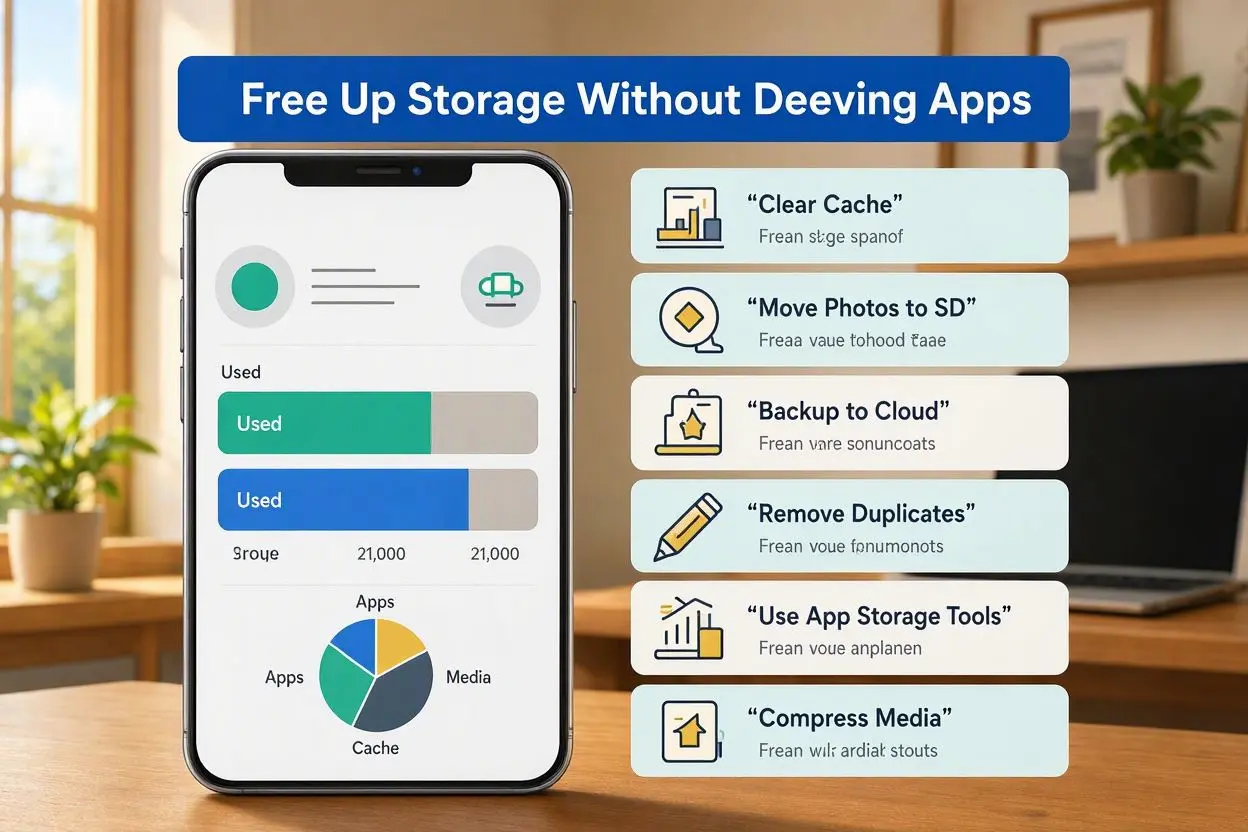
How to Free Up Storage on Android Without Deleting Apps
Running out of storage on your Android phone can be frustrating, especially when you have important apps that you do not want to remove. Photos, videos, downloads, cached files, and app data can quietly take up a large amount of space over time.
The good news is that you can free up storage on Android without deleting apps. With a few simple changes, you can remove unnecessary files, clear temporary data, and recover valuable storage while keeping the apps you use every day.
Here are some practical ways to get more free space on your Android phone without uninstalling your favorite apps.
1. Clear App Cache
One of the easiest ways to free up Android storage is by clearing the cache of apps that you use frequently.
Apps such as Chrome, YouTube, Facebook, Instagram, and other social media platforms can store temporary files on your phone. Over time, these cached files can become surprisingly large.
To clear an app’s cache:
- Open Settings on your Android phone.
- Go to Apps or App Management.
- Select the app using a lot of storage.
- Tap Storage.
- Choose Clear Cache.
Avoid tapping Clear Data unless you know what it does, because clearing app data can remove saved settings or require you to sign in again.
2. Delete Unnecessary Downloads
Your Downloads folder may contain files you downloaded once and completely forgot about.
PDFs, documents, images, APK files, videos, and other files can gradually consume your available storage.
Open the Files or My Files app and check your Downloads folder. Sort files by size if that option is available, and remove anything you no longer need.
This is a simple way to free up phone storage without deleting apps.
3. Remove Old Videos and Large Files
Videos usually take up much more space than photos or documents. If your phone has been used for several months or years, old videos may be responsible for a large portion of your storage usage.
Open your gallery and look for:
- Old screen recordings
- Duplicate videos
- Downloaded movies
- Unwanted social media videos
- Large files you no longer need
Before deleting anything important, make sure you have a backup.
4. Back Up Photos to the Cloud
If your phone is filled with photos, cloud storage can help you reclaim space without removing your apps.
Services such as Google Photos can back up your pictures and videos. After confirming that your files are safely backed up, you can use the app’s storage management options to remove backed-up items from your device.
This can be particularly useful if you have thousands of photos stored locally.
5. Delete Duplicate Photos and Files
Duplicate files are another common reason Android storage fills up.
You may have multiple copies of the same image because of messaging apps, downloads, screenshots, or photo-editing applications.
Some Android phones and file-management apps include tools for finding duplicate or unnecessary files. Review the suggested files carefully before deleting them.
Removing duplicate files can increase Android storage space without affecting the apps installed on your phone.
6. Clean Up WhatsApp and Other Messaging Apps
Messaging apps can quietly consume a huge amount of storage because they automatically save photos, videos, GIFs, documents, and voice messages.
For WhatsApp, open the app’s storage management section and review conversations that are using the most space.
You can remove large videos, duplicate images, or old documents while keeping the WhatsApp app installed.
The same idea applies to other messaging and social media apps.
7. Check Which Apps Are Using the Most Storage
You do not always need to delete an app to reduce its storage footprint.
Go to:
Settings → Apps → See All Apps
The exact menu names can vary depending on your Android phone.
Check the storage size of individual apps. Some apps may have accumulated a large amount of cached data or downloaded content.
Clearing unnecessary temporary files can help you make more storage space on Android without uninstalling the application.
8. Remove Offline Downloads
Many apps allow you to download content for offline use. While this is convenient, downloaded content can take up several gigabytes.
Check apps such as:
- YouTube
- Spotify
- Netflix
- Google Maps
- Podcast apps
- Music apps
Look for movies, songs, playlists, podcasts, or maps that you downloaded but no longer need.
Deleting offline content does not necessarily mean deleting the app. You can download it again later whenever necessary.
9. Empty the Trash or Recently Deleted Folder
Some Android gallery and file-management apps keep deleted files in a trash or recently deleted folder for a certain period.
That means deleting a file may not immediately free up storage.
Check your:
- Gallery trash
- Google Photos trash
- File Manager trash
- Recently Deleted folders
If you are certain you no longer need those files, permanently deleting them can recover additional storage.
10. Remove Old Screen Recordings and Screenshots
Screenshots and screen recordings can build up quickly, especially if you frequently capture your screen.
Open your Gallery or Photos app and search for screenshots and screen recordings.
Remove outdated images, duplicate screenshots, and recordings that you no longer need.
Screen recordings are particularly worth checking because a single long recording can take up hundreds of megabytes.
11. Use Android’s Built-In Storage Recommendations
Many modern Android phones provide built-in storage management tools.
Depending on your phone manufacturer, you may see options such as:
- Free up space
- Storage manager
- Clean up
- Junk files
- Large files
- Duplicate files
These tools can identify files that are safe to review and remove.
The exact features vary between Samsung, Google Pixel, Xiaomi, OnePlus, Motorola, and other Android devices.
12. Move Large Files to a Computer or External Storage
If you want to keep your photos, videos, and documents but do not need them stored on your phone, move them to another location.
You can transfer files to:
- A computer
- An external storage device
- A USB drive
- Cloud storage
This allows you to free up Android internal storage while keeping your important files available.
13. Avoid Random Cleaner Apps
You may see apps promising to dramatically increase your phone’s storage with one tap. Some may be useful, but installing unnecessary cleaning apps can sometimes create another storage problem.
Android already provides several tools for managing storage. Before installing a third-party cleaner, check what your phone’s built-in storage settings can do.
Also be careful with apps that request excessive permissions or make unrealistic claims about improving your phone.
14. Restart Your Android Phone
A simple restart will not permanently remove large files, but it can sometimes clear temporary system processes and resolve incorrect storage reporting.
If your phone recently deleted files but the available storage has not changed, restarting the device may help Android refresh its storage information.
15. Check Your Storage Regularly
The easiest way to avoid running out of storage is to monitor it regularly.
Instead of waiting until your phone displays a “Storage Almost Full” warning, check your storage every few weeks.
Pay particular attention to:
- Videos
- Photos
- Downloads
- Messaging apps
- Offline media
- Cached data
- Large documents
Regular maintenance can help keep your Android phone running smoothly and reduce the need for a major cleanup later.
Final Thoughts
You do not have to uninstall your favorite apps every time your Android phone runs out of space. By clearing unnecessary cache files, removing old downloads, managing photos and videos, deleting duplicate files, and cleaning up offline content, you can free up storage on Android without deleting apps.
Before removing anything, always check whether the file is important and keep a backup of valuable photos, videos, and documents. A few minutes of regular storage management can make a noticeable difference and help you keep your phone organized.
Frequently Asked Questions
Can I free up Android storage without deleting apps?
Yes. You can remove unnecessary downloads, duplicate files, old videos, cached data, offline content, and backed-up photos without uninstalling your apps.
How do I get more storage on Android without deleting anything important?
Start by checking large files, downloads, videos, duplicate photos, and offline media. Back up important files before deleting anything.
Does clearing cache free up storage?
Yes. Clearing an app’s cache can remove temporary files and recover some storage space. The amount of space recovered depends on the app.
Will clearing app cache delete my photos or personal files?
Normally, clearing an app’s cache removes temporary files rather than your personal files. However, avoid using “Clear Data” unless you understand what information the app will remove.
Why is my Android storage full when I don’t have many apps?
Apps are only one part of your phone’s storage. Photos, videos, downloads, WhatsApp media, offline content, cached files, and system data can consume a significant amount of space.
How can I free up storage without uninstalling WhatsApp?
You can review and delete large WhatsApp photos, videos, documents, and other media you no longer need. This keeps WhatsApp installed while reducing its storage usage.
What files should I delete to free up Android storage?
Start with files you recognize as unnecessary, such as old downloads, duplicate photos, unwanted videos, unused screen recordings, and expired offline downloads.
How often should I clean my Android storage?
Checking your storage once every few weeks is a good habit. Regular cleanup can prevent your phone from becoming completely full.