
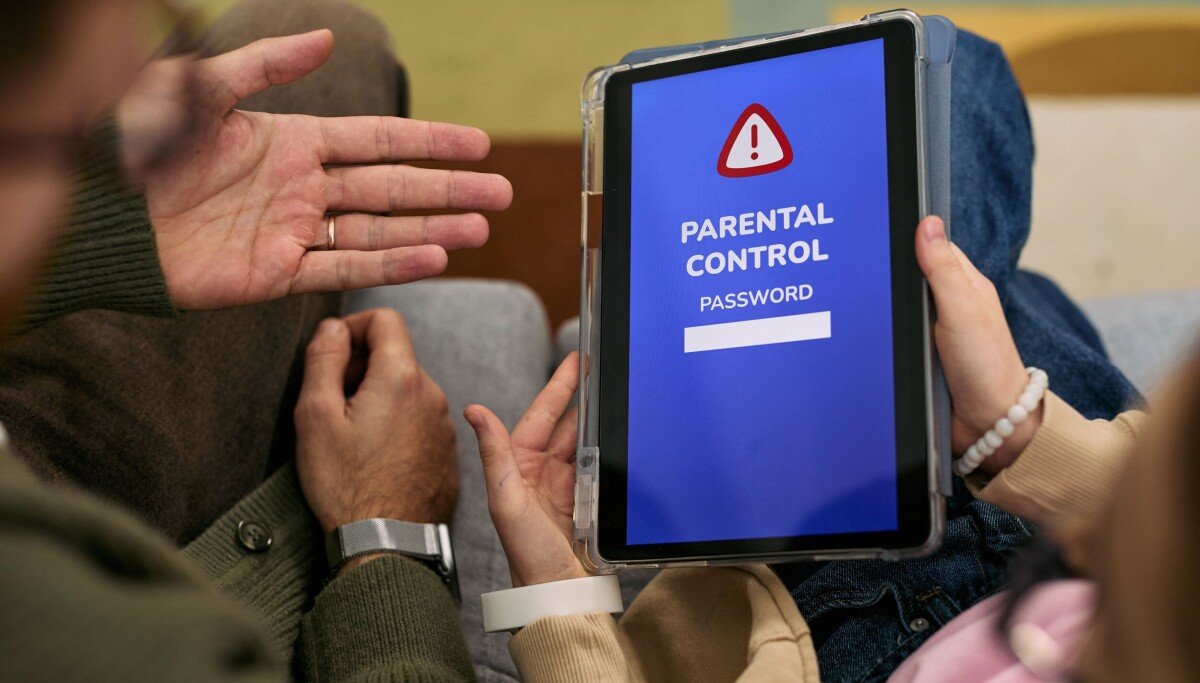
Parental Controls on a Child’s Tablet: The Complete Setup Guide
Parental Controls on a Child’s Tablet: The Complete Setup Guide
Knowing how to set up parental controls on a child’s tablet is one of those jobs every parent postpones until something worrying pops up on screen. Do it before that happens — the whole setup takes about twenty minutes, and it’s the difference between a safe device and an open window to the entire internet.
It’s one of those questions that sounds simple until you start digging. Ask three people and you’ll get four different answers — usually because everyone’s situation is slightly different. I’ve pulled together the practical detail below so you can make a decision without spending your whole weekend on comparison sites. If that’s on your mind too, have a look at our guide to which is better for streaming in the uk netflix or disney plus — it pairs naturally with everything below.
How to set up parental controls on a child’s tablet: iPad
Walk through these in order and you’ll be sorted:
- Go to Settings > Screen Time and turn it on, choosing ‘This is My Child’s iPad’.
- Set a Screen Time passcode only you know — without this, everything else is decoration.
- Under Content & Privacy Restrictions, set age-appropriate limits for apps, web content and purchases.
- Use App Limits to cap categories (e.g. 1 hour of games on school nights) and Downtime to enforce bedtime.
- Turn on ‘Ask to Buy’ via Family Sharing so every download needs your approval.
- Enable Communication Limits to control who they can message in FaceTime and Messages.
Now for the part most guides skip: the practical trade-offs. Worth a read alongside this: our guide to what is the cheapest way to get unlimited data in the uk.
Android tablets: Google Family Link
On Android, Google Family Link is the control centre — install it on your phone, create or link your child’s Google account, and you can manage their tablet remotely: approve app installs, set daily screen-time limits, lock the device at bedtime, and filter Chrome and Google Search results.
The bedtime lock is the feature parents praise most: the tablet simply stops working at the set hour, no negotiation possible. Set it fifteen minutes before actual bedtime and let the device be the bad guy — it preserves your relationship far better than nightly arguments.
One thing I’ve noticed over the years: the people who are happiest with their choice are the ones who matched it to how they actually live, not to some idealised version of their habits. Be honest with yourself here and you’ll choose better.
Amazon Fire Tablet: the easiest of the lot
Fire Tablets have the best built-in parental controls of any budget tablet via Amazon Kids. Create a child profile, pick an age range, and Amazon curates the entire experience — apps, videos, books — with no access to the open web or purchases unless you allow them.
For under-10s, a Fire Kids tablet with the two-year ‘if they break it, we replace it’ guarantee is genuinely the best value safe tablet in the UK. The controls are simpler than Apple’s or Google’s because the whole device is designed around them.
What parental controls can’t do
Here’s the short version, so you can scan it fast:
- They don’t replace conversations: tech filters fail; a child who understands why rules exist is safer than one who just hits a blocked page.
- YouTube is the weak spot: even YouTube Kids lets odd content through — use the supervised ‘pre-teen’ settings and check watch history.
- Tech-savvy kids bypass controls: assume any determined 12-year-old can Google a workaround. Controls buy time and set norms, not guarantees.
- Review settings every 6 months: kids grow fast; a 7-year-old’s locks will frustrate an 11-year-old into finding ways around them.
- Don’t forget the router: ISP-level filters (BT, Sky, Virgin all offer them free) catch devices you forgot about, like a friend’s phone on your wifi.
Quick answers
Can I handle parental controls myself, or do I need professional help?
It depends on complexity and stakes. Straightforward parental controls tasks are well within DIY territory with a decent guide — most people manage fine and save a packet. But when money, legal compliance or safety are involved, professional help pays for itself quickly. My rule of thumb: DIY when the worst case is a wasted afternoon; call in a pro when the worst case is wasted money or a legal headache.
What should I do first if I’m completely new to parental controls?
Start with the free, reversible steps: research, compare, and get your facts straight before spending a penny or signing anything. Make a shortlist of two or three options, check recent reviews — and read the one-star ones, not just the average — and talk to someone who’s done it before you. Ten minutes of asking around beats ten hours of guessing, and it costs nothing.
What’s the biggest mistake people make with parental controls?
Rushing in without comparing options. Most people grab the first parental controls deal they see — usually an advert or a mate’s recommendation — and never check whether it actually fits their situation. Spend an hour comparing two or three alternatives, read the small print on the cheapest one, and you’ll dodge the regret that lands three months later when the bills arrive or the limitations start to bite.
Pro tip: for parental controls, the middle of the market is usually the sweet spot. The cheapest tier cuts the corners you’ll notice every single day; the premium tier charges for bragging rights. Buy the best of the mid-range and you’ll rarely regret it.
What I’d actually do
Twenty minutes of setup — Screen Time on iPad, Family Link on Android, Amazon Kids on Fire — plus a bedtime lock and purchase approvals covers 90% of the risk. The remaining 10% is parenting, and no settings page can do that part for you.
Nobody else is going to sort this for you, and honestly it doesn’t take long once you know what you’re looking at. Pick the option that fits, set a reminder to review it in a year, and get on with your life. Final thought: the market rewards people who shop around and punishes people who don’t. You’re now in the first group. For the official word, see NSPCC guide to parental controls. Internet Matters parental controls guides is also worth a look for independent comparisons. And if you’re still weighing things up, our guide to how much does a smart tv cost in the uk in 2026 covers the next question most people ask.