
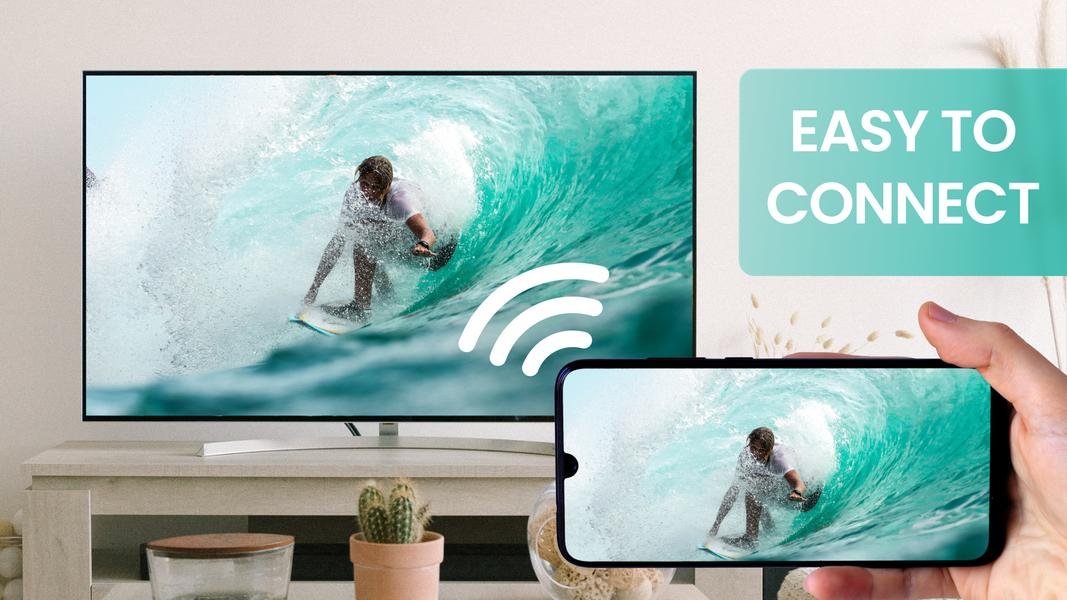
How to Mirror Your Phone to TV Wirelessly (All Methods)
How to Mirror Your Phone to TV Wirelessly (All Methods)
How do I mirror my phone screen to my TV without cables? You’ve got four good options depending on your phone and TV: Chromecast, AirPlay, Miracast, or your smart TV’s built-in app. Most people already own everything they need — the feature is just buried in a menu they’ve never opened.
There’s a lot of conflicting advice out there, and some of it is years out of date. Rules change, prices move, and providers quietly rewrite their terms. What follows is current for the UK right now, based on what’s actually on offer and what real customers are paying — not the teaser rates in the adverts. If that’s on your mind too, have a look at our guide to what is the best budget smartwatch for android users in the uk — it pairs naturally with everything below.
How do I mirror my phone screen to my tv without cables? The methods
If you only read one list today, make it this one:
- Chromecast built-in / Google TV: Android: swipe down, tap Screen Cast, choose your TV. Works on most smart TVs from the last 5 years. The easiest method for Android users.
- AirPlay (iPhone): swipe down Control Centre, tap Screen Mirroring, choose your TV. Works with Apple TV boxes and most 2019+ smart TVs (Samsung, LG, Sony all support it).
- Manufacturer apps: Samsung Smart View, LG ThinQ — fine, but the built-in cast options above are usually simpler.
- Miracast: the generic Windows/Android standard — works but clunkier than Chromecast or AirPlay.
- Fire TV Stick (£35): adds screen mirroring to any TV with HDMI, plus a better smart interface. The universal fix for old TVs.
Here’s where it gets genuinely useful. The theory is fine, but decisions happen in the detail below. Worth a read alongside this: our guide to can I get a refund for a faulty appliance bought online in the uk.
Step by step: the two you’ll actually use
Do it in this sequence and you won’t miss anything important:
- Android to smart TV: connect both to the same wifi → swipe down twice for Quick Settings → tap ‘Screen cast’/’Smart View’ → select your TV → accept the prompt on the TV.
- iPhone to smart TV/Apple TV: same wifi on both → open Control Centre → tap the Screen Mirroring icon (two rectangles) → select your TV → enter the AirPlay code shown on TV if asked.
- If the TV doesn’t appear: check both devices are on the same wifi network (not one on 2.4GHz and one on 5GHz with isolation on).
- Still nothing? restart both devices — casting discovery is notoriously flaky until a fresh restart.
A quick word from experience: don’t decide on price alone. The cheapest option has a habit of costing more in hassle, and I’ve learned that lesson the expensive way more than once.
Mirroring vs casting: use the right one
Here’s what most guides don’t explain: mirroring shows your exact phone screen (great for photos, presentations, apps without TV versions), while casting hands the TV a direct stream (better quality, phone stays usable). For Netflix, YouTube and iPlayer, always cast from within the app — it’s higher quality and your phone battery will thank you.
Mirroring is for everything else: showing holiday photos, demoing an app, video calls on the big screen, or mobile games. Expect slight lag (fine for photos, annoying for fast games) and remember notifications pop up on the TV too — enable Do Not Disturb before mirroring anything in front of guests.
Fixing lag and quality issues
Mirroring lag usually comes from wifi congestion: move closer to the router, switch to 5GHz, or pause other streaming in the house. If quality looks soft, lower the phone’s screen brightness won’t help — but closing background apps can, since mirroring taxes the phone’s processor.
For regular big-screen viewing, honestly, stop mirroring and get the app on the TV itself (or a £35 streaming stick). Mirroring is a brilliant occasional tool and a mediocre daily habit — it’s a spare tyre, not a wheel. Use it for sharing and presenting; use native apps for watching.
Quick answers
Can I handle screen mirroring myself, or do I need professional help?
It depends on complexity and stakes. Straightforward screen mirroring tasks are well within DIY territory with a decent guide — most people manage fine and save a packet. But when money, legal compliance or safety are involved, professional help pays for itself quickly. My rule of thumb: DIY when the worst case is a wasted afternoon; call in a pro when the worst case is wasted money or a legal headache.
How long does sorting out screen mirroring usually take?
Less time than you’re probably imagining. The research takes an evening, the decision takes a day of mulling over, and the actual doing is usually under two hours. What stretches it into weeks is dithering — half-decided, tab-hoarding limbo. Pick a deadline, gather the facts from this guide, make the call, and move on. Done beats perfect here, every single time.
Is the cheapest screen mirroring option ever the right choice?
Sometimes — but rarely for the reasons people think. The cheapest screen mirroring option works fine when your needs are simple and the product is basically a commodity. It falls apart when reliability, support or longevity matter. Ask yourself one question: what’s the cost if this goes wrong? If the answer is ‘a bad afternoon’, go cheap and cheerful. If it’s ‘hundreds of pounds or weeks of hassle’, pay the middle price and sleep well.
Pro tip: when you’re comparing screen mirroring options, ignore the headline claims and read the worst-case reviews instead. How a company handles problems tells you far more than any advert — and it’s the problems you’ll remember, not the smooth months.
So, what’s the verdict?
Android: Screen Cast to your smart TV. iPhone: AirPlay via Control Centre. Same wifi on both devices is the key step everyone misses. Cast from apps for watching; mirror for sharing photos and presentations.
That’s the full picture as it stands. Markets move and deals change, but the principles above hold — match the choice to your real needs, read the small print, and don’t pay for things you won’t use. Final thought: the market rewards people who shop around and punishes people who don’t. You’re now in the first group. For the official word, see Google: cast from Android. Apple: use AirPlay is also worth a look for independent comparisons. And if you’re still weighing things up, our guide to how much does a kindle cost in the uk and is it worth it covers the next question most people ask.