
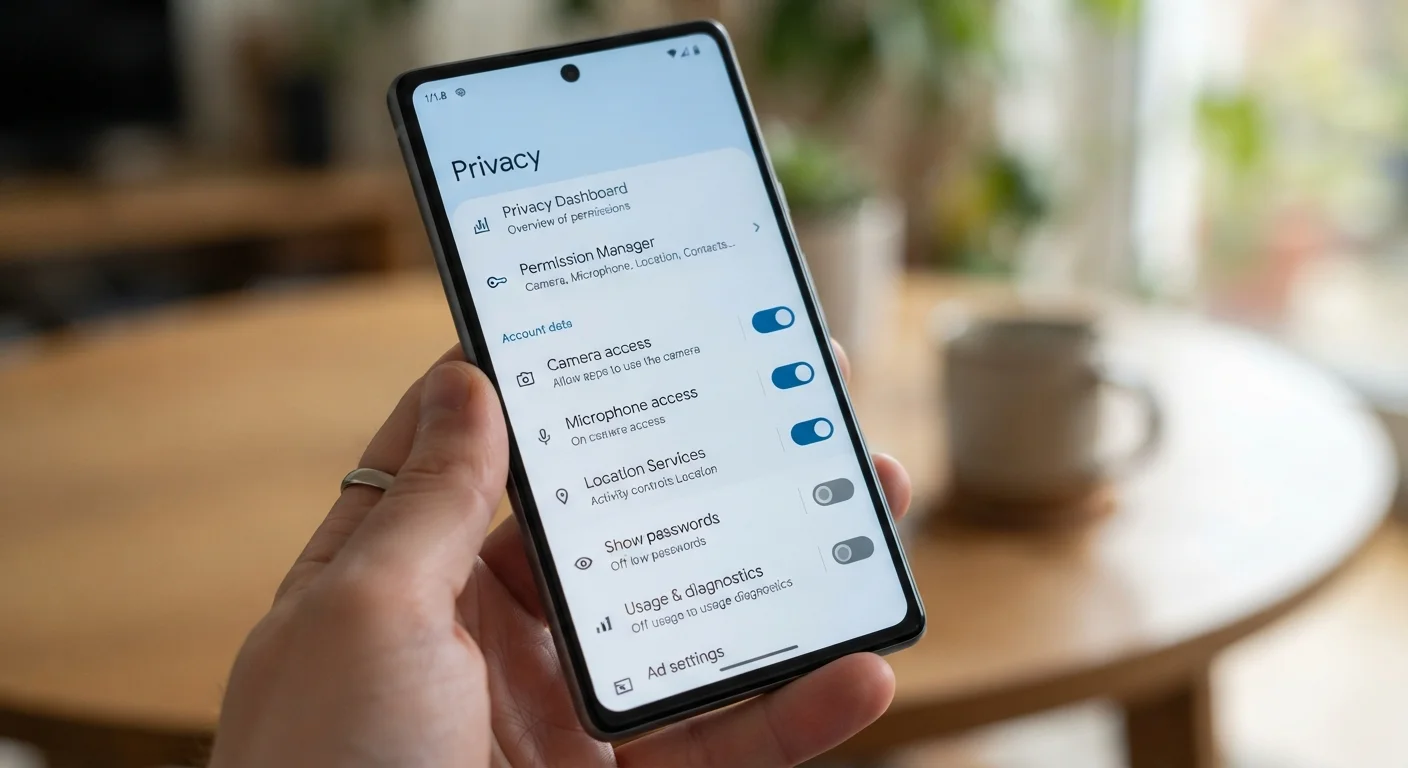
How to Turn Off AI Features You Don’t Want on Your Phone
If you’ve been wondering how do I turn off ai features I do not want on my phone, you’re not alone. Your phone keeps summarising your notifications, suggesting replies you didn’t ask for, and organising your photos into memories you’d rather forget. AI features arrive via software updates with cheery announcements and no obvious off switch. Whether it’s privacy concerns, battery life, or just finding them annoying, here’s how to take back control on iPhone and Android.
It’s worth knowing that How do I turn off ai features I do not want on my phone is one of those topics where a little clear information saves a lot of confusion. Let’s break it down properly.
How do I turn off ai features I do not want on my phone?
Start with the big one — Apple Intelligence (iPhone): Settings > Apple Intelligence & Siri lets you disable it entirely, plus individual features like notification summaries and writing tools. On Samsung Galaxy: Settings > Galaxy AI lets you toggle each feature individually — call assist, photo assist, note assist — so you can keep what you like. A short burst of attention here prevents a long stretch of hassle later. (We’ve also covered how do I spot ai-generated fake reviews online in detail.)
Google Pixel: Settings > System > AI features (location varies by version) controls Gemini integration, call screening and photo features separately. Future you will be genuinely grateful that present you bothered with this. You can check the official guidance on BBC Technology on phone AI features for the full details.
It’s worth knowing that Notification summaries are the most commonly disabled: they save little time and occasionally garble important messages — turn them off per-app or entirely. A short burst of attention here prevents a long stretch of hassle later.
The practical approach
Enough theory — here’s how to handle this in practice. These are the steps I’d actually follow:
- AI keyboards and autocorrect: if predictive text annoys you, keyboard settings let you disable predictions while keeping basic autocorrect. It’s the kind of detail that seems minor until it costs you real time or money.
- Voice assistants: ‘Hey Siri’ and ‘Hey Google’ detection can be switched off if you’d rather trigger assistants manually — also a small battery saving. The people who handle basics like this well are usually the ones who never have horror stories.
- Photo ‘memories’ and auto-creations: both Apple Photos and Google Photos let you disable auto-generated slideshows and featured content. It’s the kind of detail that seems minor until it costs you real time or money.
- The privacy angle: disabling AI features also stops related data processing — check each feature’s data policy if privacy (not just annoyance) is your concern. The people who handle basics like this well are usually the ones who never have horror stories.
Related reading: our guide to how can small shops use ai without spending much pairs well with everything above.
Mistakes worth avoiding
A quick word on what not to do — these are the traps I see people fall into most often:
- Trusting AI output without verification — a confident tone is not the same as being correct.
- Feeding sensitive personal data into free tools without checking the privacy settings first.
- Expecting AI to replace your judgement rather than support it — you stay in charge, always.
- Giving up after one poor result — the second or third attempt is usually dramatically better.
Where I land on this
My take: there’s no shame in turning this stuff off. Tech companies treat every AI feature as a gift; users experience many of them as clutter. I keep a small handful I genuinely use — call screening, photo search — and disable the rest. Your phone should work for you, not demo features at you. Revisit after major updates, since new AI toggles tend to default to ‘on’.
The bigger picture matters here too: how do I turn off ai features I do not want on my phone is part of a wider shift in how we all work with intelligent tools. The people thriving aren’t the biggest enthusiasts or the loudest sceptics — they’re the pragmatists who learn what the tools do well, respect their limits, and keep human judgement firmly in charge.
For independent further reading, the ICO on your phone privacy rights is a solid next stop.
Good to know
What’s the single most important thing to know about how do I turn off ai features I do not want on my phone?
Start with the big one — Apple Intelligence (iPhone): Settings > Apple Intelligence & Siri lets you disable it entirely, plus individual features like notification summaries and writing tools. Future you will be genuinely grateful that present you bothered with this.
Where should I start?
On Samsung Galaxy: Settings > Galaxy AI lets you toggle each feature individually — call assist, photo assist, note assist — so you can keep what you like. Begin there and build from a solid foundation rather than trying to do everything at once.
What’s the biggest mistake people make?
Trusting AI output without verification — a confident tone is not the same as being correct. Avoid that trap and you’re already ahead of most people.
What to do now
Reading about how do I turn off ai features I do not want on my phone is useful — trying it is transformative. Here’s a simple checklist to go from theory to practice this week. None of these steps takes long, and hands-on experience will teach you more than any article can.
- Pick one tool or technique from this article and try it on a real task this week — learning by doing beats reading about AI every single time.
- Check the privacy and data settings on any AI tool you use, particularly around training data use and chat history — it takes two minutes.
- Share what worked with a colleague or friend. Explaining it to someone else cements your own understanding and spreads genuinely useful knowledge.
Key takeaway
To turn off unwanted AI features: iPhone users go to Settings > Apple Intelligence & Siri; Samsung to Settings > Galaxy AI; Pixel to the AI settings section — all let you disable features individually or entirely. Notification summaries and auto-memories are the usual first casualties. Keep what genuinely helps, kill the rest, and re-check after updates since new features default to on. And if this raised more questions, our piece on how do I write a good prompt for chatgpt is worth a look next.